Silk Mobile
Table of Contents (Homepage)
- Overview
- Setting Up
- Getting Started
- How To
- Connecting Devices And Emulators
- Preparing Applications For Testing
- Managing Applications
- Recording Tests
- Working With Test Commands
- Adding Commands To Your Scripts
- Object Commands
- Click
- ClickCoordinate
- ClickIn
- ClickOffset
- Drag
- ElementGetProperty
- ElementGetTableRowsCount
- ElementListPick
- ElementListSelect
- ElementListVisible
- ElementScrollToTableRow
- ElementSendText
- ElementSetProperty
- ElementSwipe
- ElementSwipeWhileNotFound
- GetAllValues
- GetElementCount
- GetElementCountIn
- GetTextIn
- IsElementBlank
- IsElementFound
- IsFoundIn
- LongClick
- RunNativeAPICall
- SendWhileNotFound
- VerifyElementFound
- VerifyElementNotFound
- VerifyIn
- WaitForElement
- WaitForElementToVanish
- GetCoordinateColor
- DragDrop
- Application Commands
- Device Commands
- Web (Hybrid) Specific Commands
- Utilities Commands
- Monitoring Commands
- Configuration Commands
- ExtractLanguageFiles
- SetDefaultClickDownTime
- SetDefaultTimeOut
- SetDefaultWebView
- SetDragStartDelay
- SetInKeyDelay
- SetKeyToKeyDelay
- SetLanguage
- SetLanguagePropertiesFile
- SetShowImageInReport
- SetShowPassImageInReport
- SetShowReport
- SetSpeed
- SetThrowExceptionOnFail
- SetWebAutoScroll
- StartStepsGroup
- StopStepsGroup
- TextFilter
- Miscellaneous Commands
- Controlling Element Identification Rules
- Editing Test Objects
- Executing Test Scripts
- Report Of Executed Test
- Working From Code Environment
- Continuous Integration
- Layout Verification Tests
- Use Device Vitals Monitors
- Troubleshooting
- Terminology
Object Spy
In this page we will cover the features of Object spy that is available with Silk Mobile.

Object spy is a key feature in Silk Mobile and it will help us in getting the property of all the objects that are available in the screen. This properties will be helpful in creating the tests. This gives the entire set of properties of all elements from Zones like Native, Web and Native Non-instrumented as well. We will see each zone below:
Native

When the object spy is used while the instrumented application is running on the foreground, it highlights all the elements with Red rectangles and all the native properties are read. It gives all the list of properties as mentioned above and also the properties which the developer has specified to a particular element. In the above example, we can read all the properties of the “Login” button by just clicking on the object spy icon.
There are multiple options available from Silk Mobile from Object spy.
Extract Object
This allows the user to add the selected object into the Object repository of Silk Mobile.
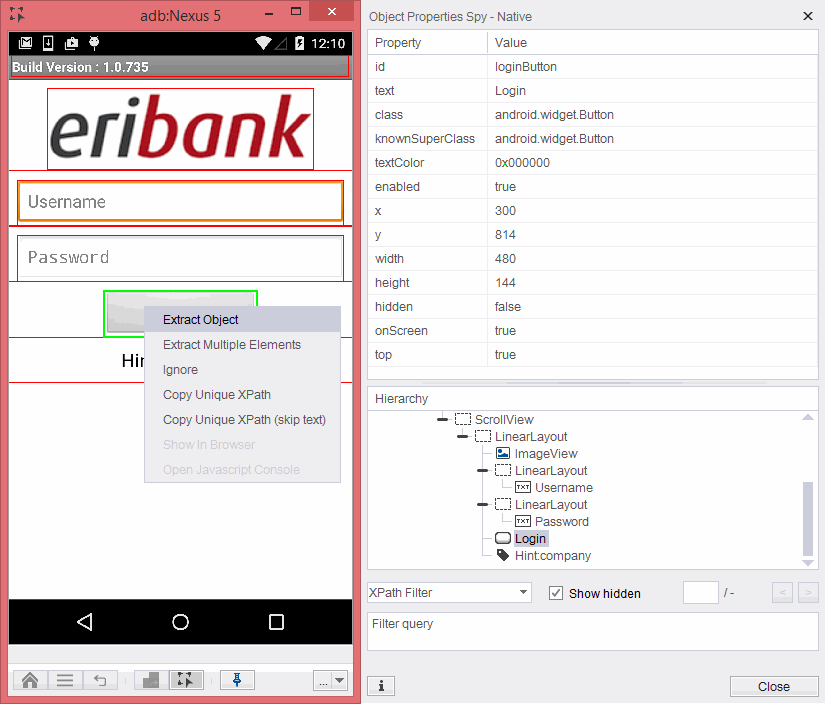
Right click on the particular element which needs to be extracted to the object repository.
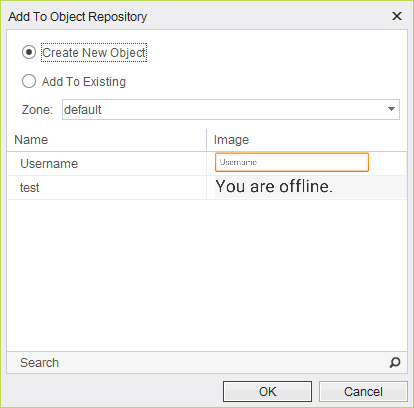
If you are going to create a new object , click on “Create a New Object”. This will create a new object into your repository.
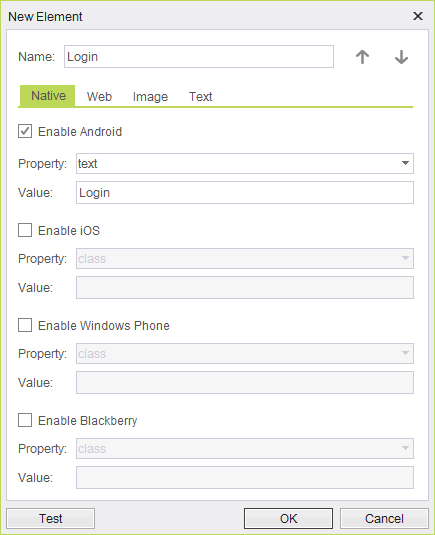
Specify the name and the properties you would like to use for the identification of the element and click on “OK”
Click on “Add to Existing” will create a reference to the already existing object.
This will show the list of elements available from which we can select a particular element to which we need to this object.
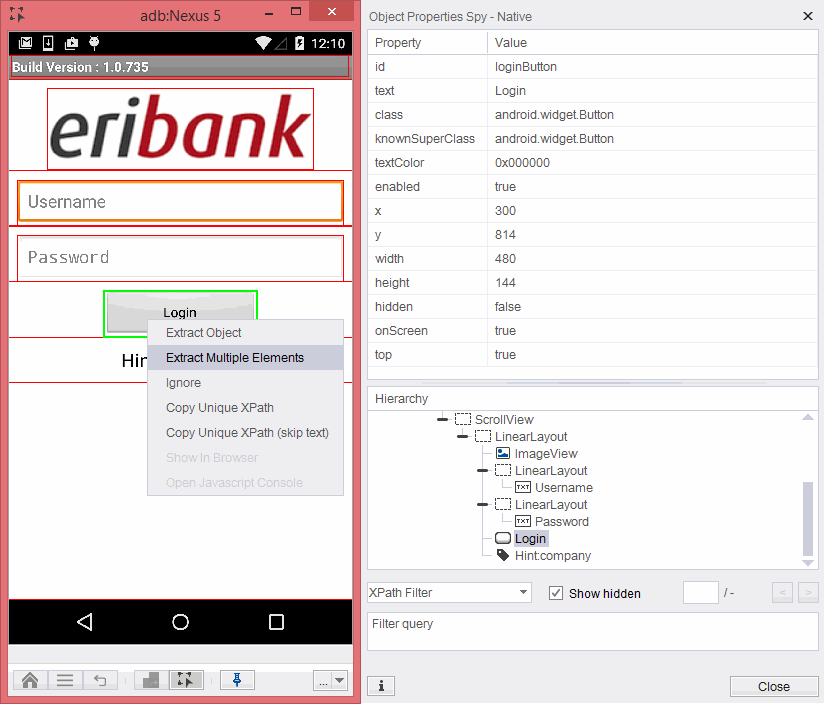
Extract Multiple Elements
This feature allows you to add one or more number elements into the object repository at one specific time.
Upon clicking, this will present you all the elements available in the screen.
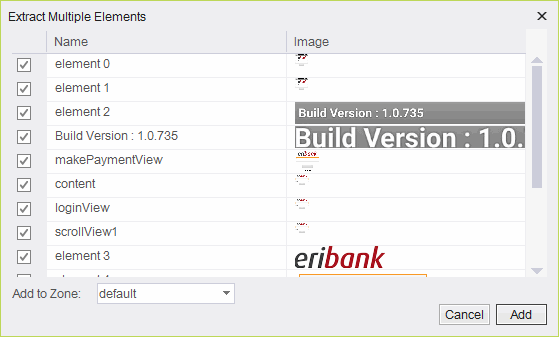
You can select as many elements as you want and then click on “Add”.
All this elements will be added into the repository.
Ignore
This ignore option ignores the element under focus. This will be most helpful in cases where the elements are overlying the one another.
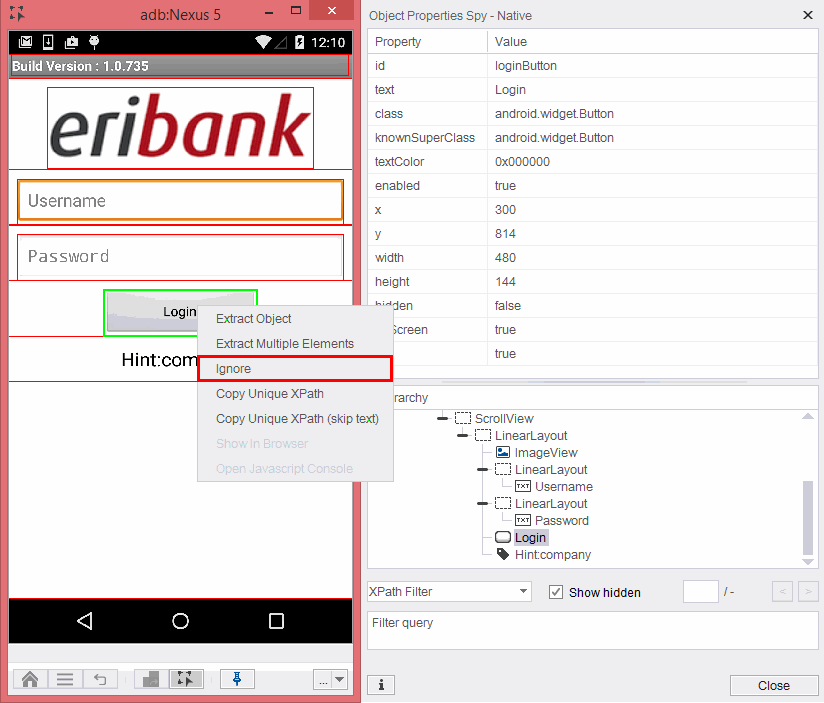
In this cases, we will ignore the “Login” and clicking on the same place will give us a chance to read the properties of object wth class, “LinearLayout”.
Copy Unique Xpath
This feature of copy unique Xpath is so helpful in retrieving Xpaths that can be later used in our tests.
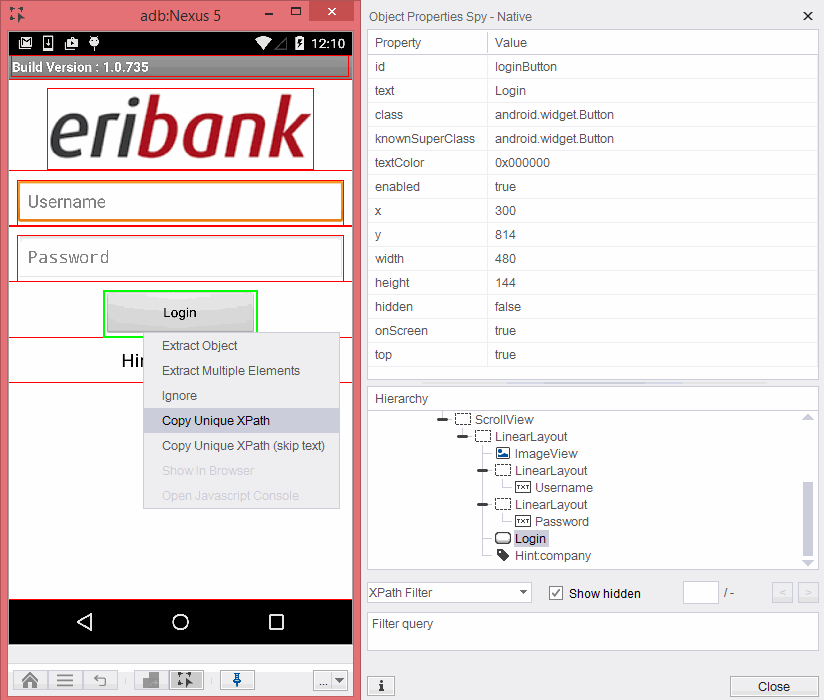
When using feature to retrieve the Xpath for “Login” button , the value will be returned as xpath=//*[@text='Login']
Copy Unique Xpath (SkipText)
This feature allows the user to create Xpaths without using the text property as it may be a dynamic property that changes very often.
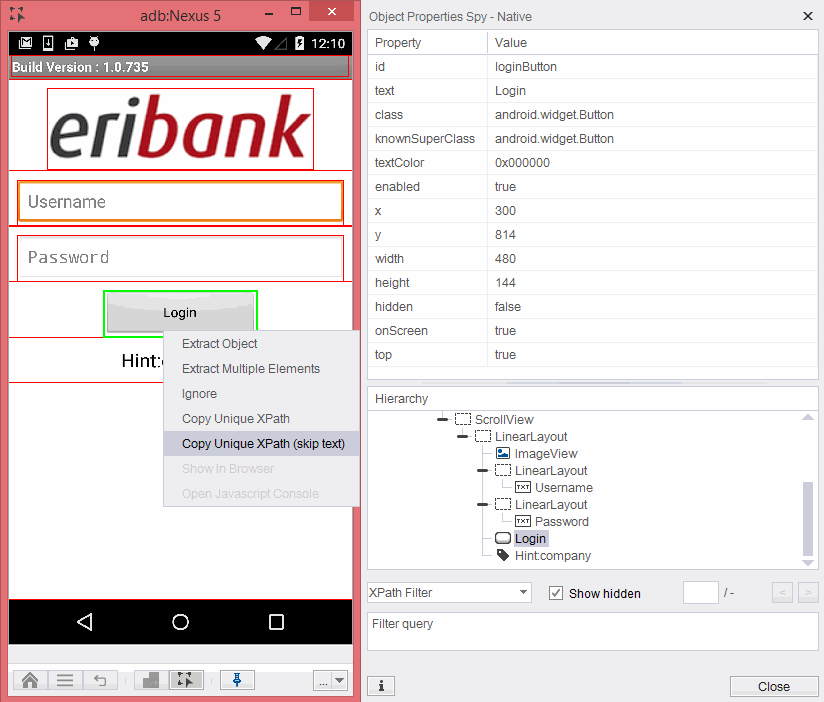
When using feature to retrieve the Xpath for “Login” button , the value will be returned as xpath=//*[@id='loginButton'].
Native non-instrumented mode
Silk Mobile can identify objects in device's spring board like gallery , settings and camera and it highlights all the elements with Orange rectangles and all the native properties are read in non-instrumented mode. Below is an example of spying the home screen.
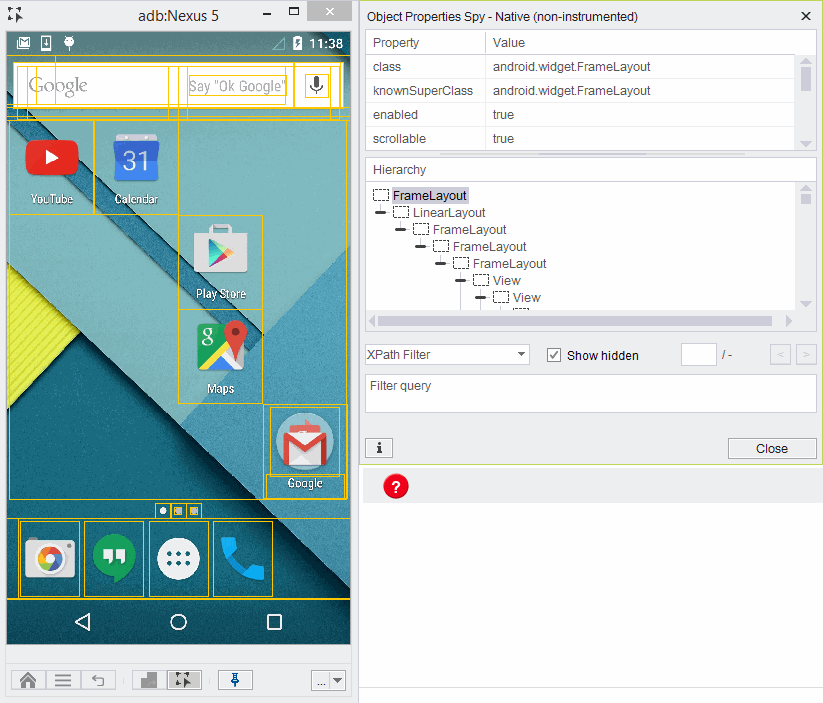
All the properties that are seen here can be used to construct Xpaths and used in the tests.
WEB
Object spy is most useful in case of automating a web application. In web pages we used to see the all the properties that a developer has defined to it.
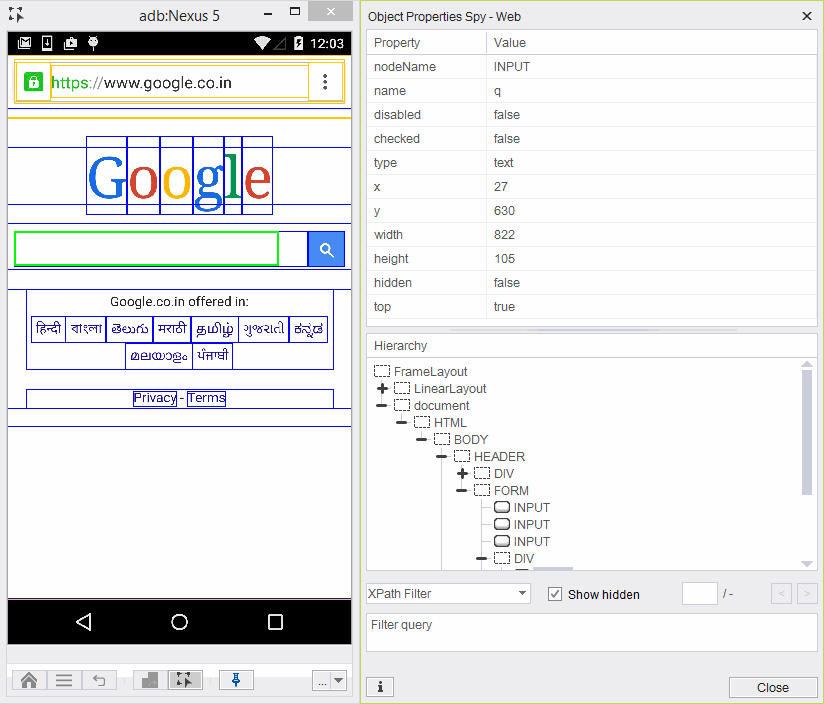
This properties are used in creating dynamic Xpaths that will be used it tests.
All the options mentioned for NATIVE remains the same for WEB elements as well except the below which are not available for Native elements.
Show in Browser
This feature opens the same webpage in the default browser of your machine to understand more about the properties of the object.
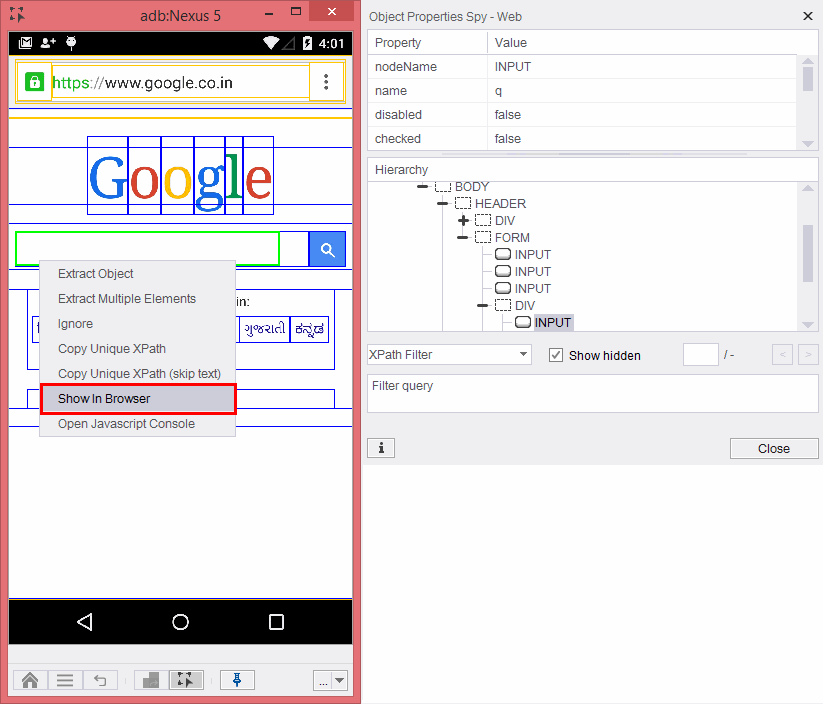
The page will be opened in the browser as shown below:
Open JavaScript Console
Description: This feature provides the user with an easy to use console to develop and test JavaScripts on WEB elements.
In order to open the console, open the object spy, right click on a WEB element (does not matter which one), and click on Open JavaScript Console.
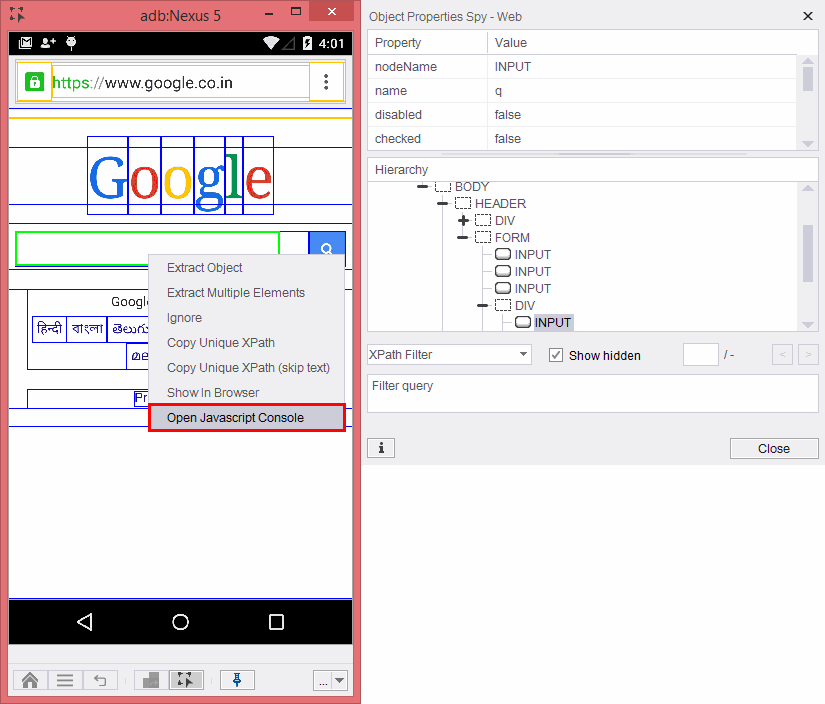
The console dialog box will open. Now you can develop and test the result of your JavaScript by using the Run button, and once the script is fully developed, just copy it and insert it in the Script parameter of the HybridRunJavaScript command. The command will return the result as a string.
Example: In the following example, we will create a script that extracts the text color of a WEB element:

Non-Instrumented-Dump
This feature will retrieve the non-instrumented dump even when running an instrumented application.
Other options available in Silk Mobile Object Spy:
Xpath Filter
Silk Mobile has a Xpath filter option which allows you to create your own dynamic Xpaths. This filters all the elements that meets the xpath query that we have defined. This Xpath can be a combination of one or more properties or attributes. In the below example, all the elements hat meets the specific Xpath query defined has been highlighted.
Free Text Filter
This filter is useful when you are not aware of the exact property and its matching value. This filters all the elements which has the text at any of its property or value. Below is an example in which all the elements that has “English” in either their property or value has been filtered.
Regular Expression Filter
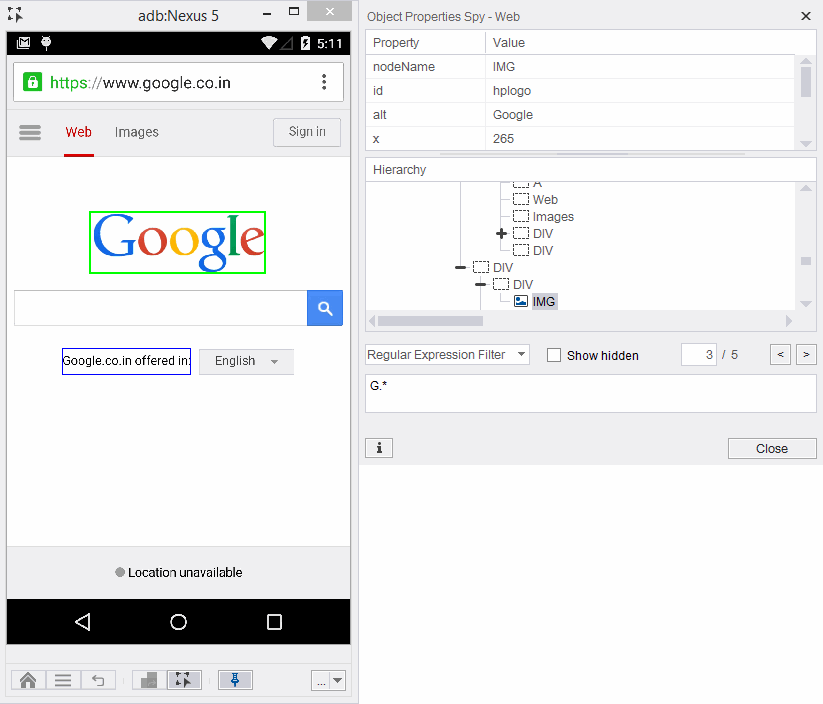
This allows us to filter all the elements by defining a regular expression. Which ever the element that meets this pattern in regular expression will be filtered. In the below example, all the elements that macthes the pattern “G.*” are filtered.